Privacy-minded redaction
Blur and pixelate are typical choices before posting to public tickets. Combine with “copy file path” tasks if your workflow keeps archives locally.
Windows · Open source · Power users
ShareX is a long-standing, community-driven screenshot and productivity suite for Windows. This page collects practical explanations, real-world workflows, and troubleshooting patterns so you can get results faster—all in one place on Share-X.org.
Independent English resource. Stable line 19.0.2 (Jan 2026) when this page was written—check for newer builds from your distributor before installing.
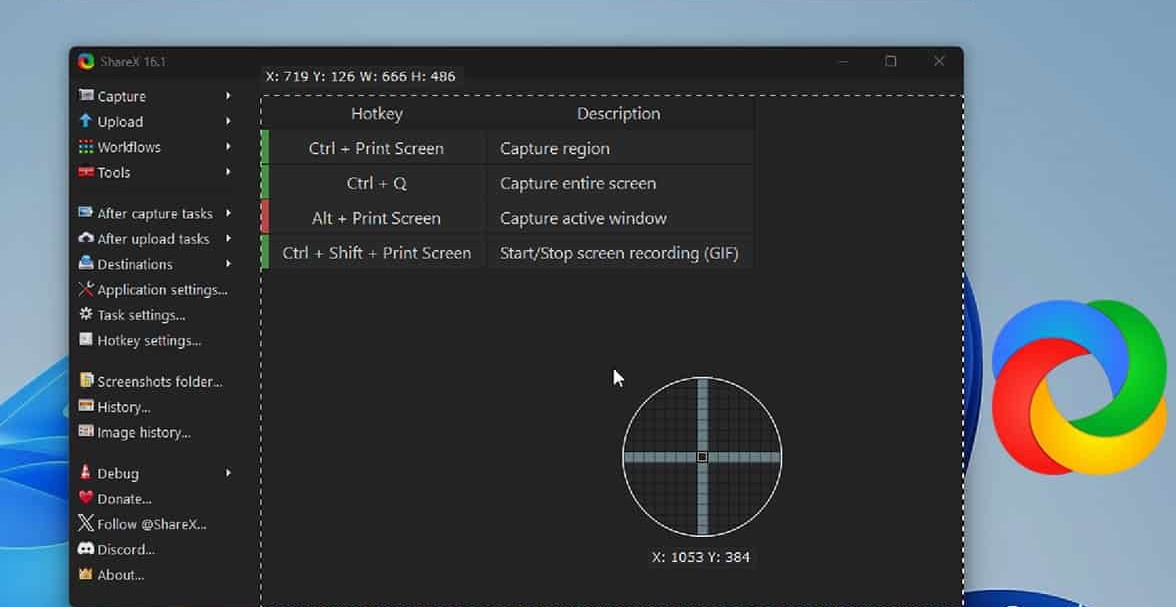
ShareX is widely described as completely free, open source, without ads, relatively lightweight for its depth, and refined over many years of development. For visitors comparing tools, these points matter:

Hotkeys, workflows, and “after capture” / “after upload” task chains reduce repetitive clicks—ideal for support staff, developers, and educators who share visuals all day.
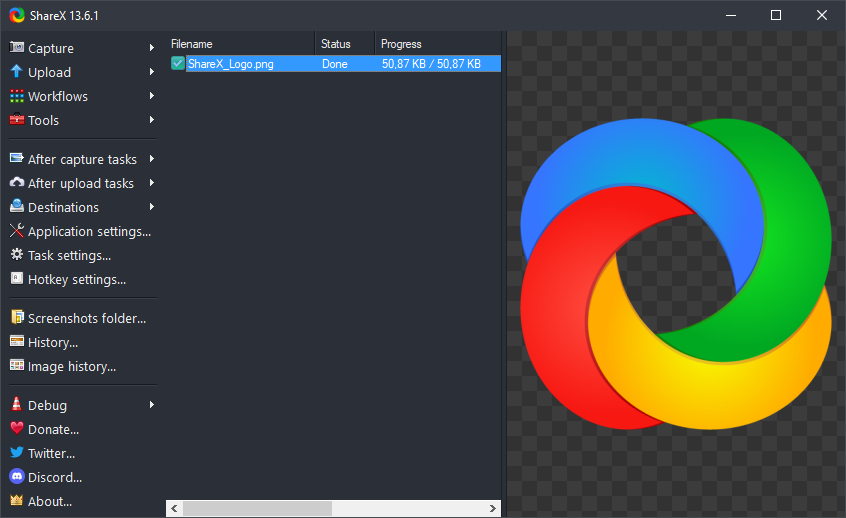
Built-in and custom uploaders (Imgur, FTP, S3-compatible stores, and more) let you route files to the service your team already uses. Custom uploader settings live inside the app’s destination configuration.
Screen recording (including GIF), scrolling capture, OCR, color picker, hash tools, and an internal image editor turn ShareX into a productivity toolbox—not only a “Print Screen replacement.”
ShareX groups captures into fullscreen, active window, per-monitor, free region, last region, video (including GIF), auto capture, and scrolling capture for tall pages. Choosing the right mode is half the battle when a window refuses to cooperate or when you need pixel-perfect crops.
Rectangle, ellipse, and freehand regions support different shapes of content. The annotation stack—arrows, steps, blur, pixelation, stickers, magnify, and more—lets you communicate clearly in one pass instead of opening a second editor. Teams often standardize on a blur preset for sensitive data and a “step” style for how-to screenshots.
Blur and pixelate are typical choices before posting to public tickets. Combine with “copy file path” tasks if your workflow keeps archives locally.
Numbered steps and speech balloons help readers follow sequences—common in IT helpdesk threads and software tutorials indexed by search engines.
Magnify highlights small UI defects; rulers and the color picker pair well when filing precise bug reports.
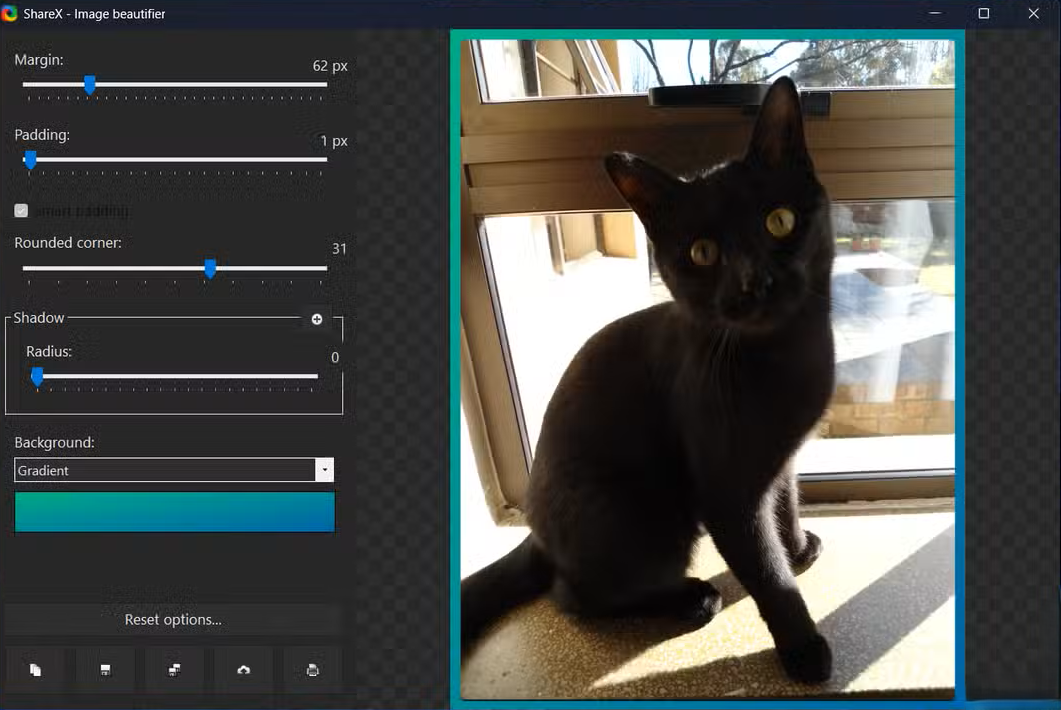
ShareX can show a quick task menu, open the image editor, beautify shots, pin to screen, print, save variants, run custom actions, perform OCR, upload, and more. Chaining tasks is how advanced users keep one hotkey for “region → annotate → upload → copy URL.”
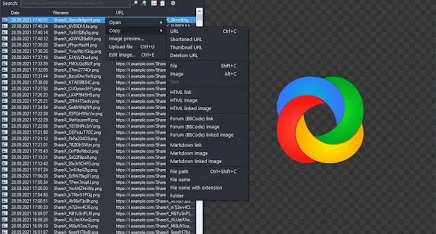
Upload file, folder, clipboard, text, URL, drag-and-drop, shorten URL, and watch-folder modes cover most automation cases. After upload, ShareX can copy the URL, open it, or show a QR code—useful for moving a screenshot to a phone quickly.
Many teams pair ShareX with object storage such as Amazon S3, Google Cloud Storage, or Cloudflare R2—useful when you self-host assets or need predictable billing. Destination presets are configured per uploader inside ShareX.
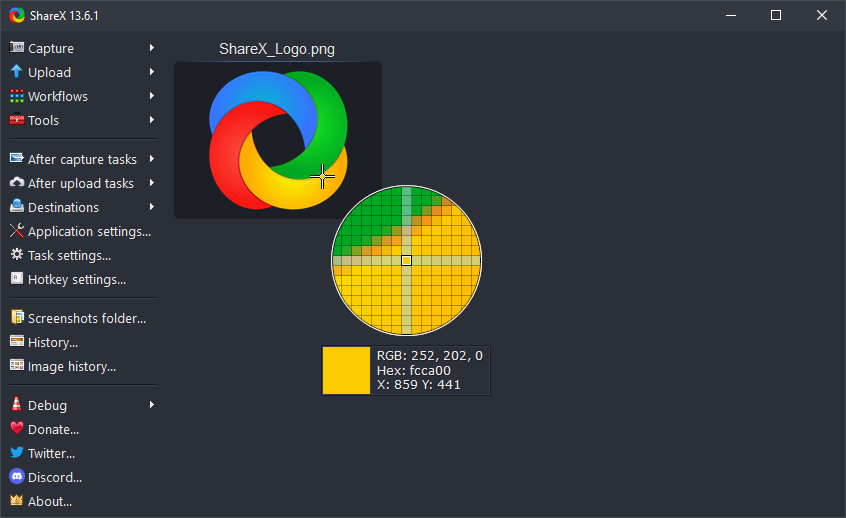
Beyond capture, ShareX ships color pickers, rulers, pin-to-screen, image combiner/splitter/thumbnailer, video converter/thumbnailer, QR and hash utilities, metadata tools, clipboard viewer, borderless window helper, and more—grouped under productivity tools in the app.
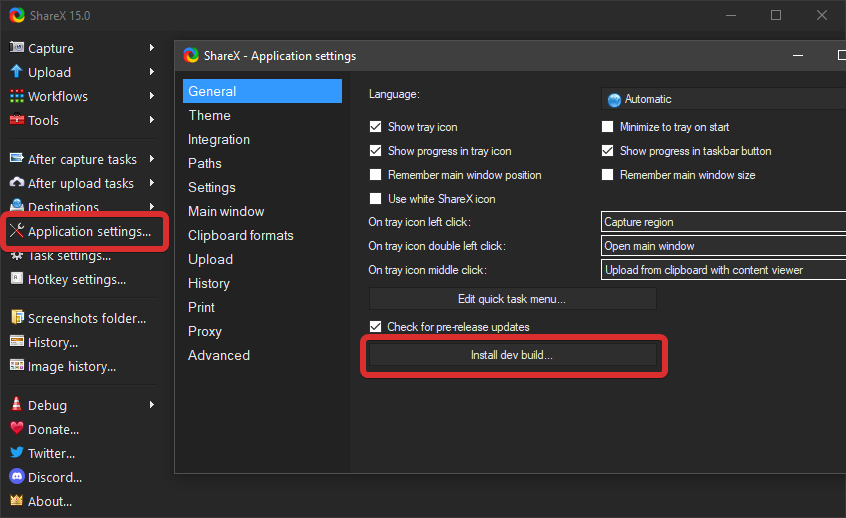
Image effects and hotkeys are configured from the main window: explore the image effects dialog and the hotkey settings screen for the full lists.
The following patterns show up repeatedly in community discussions (forums, Discord, issue threads). They are generalized descriptions so you can adapt them—your hotkeys, uploaders, and policies may differ.
Map a hotkey to region capture → image editor (arrow + blur) → save to a dated folder → copy file path → optionally upload to a private bucket. Result: reproducible attachments for bug reports or internal trackers.
Use scrolling capture for long reading assignments, then add step markers in the editor. Export as PNG for slides or PDF handouts; GIF recording for short UI demos.
When users send photos of error text, OCR inside ShareX can extract strings for knowledge-base searches—verify output before quoting it in tickets.
Some games and DRM layers block standard capture. If ShareX returns black frames, search the game title plus “capture issue” and consider vendor-specific tools; this limitation is not unique to ShareX.
These answers condense frequent support themes. For device-specific failures, attach logs and steps when asking on Discord or in other community spaces you already use.
ShareX thrives on feedback and translations. Follow release notes, ask questions politely, and contribute repro steps when reporting bugs.
Translators and testers can follow guidance inside the app and in community threads about localization and preview builds.
Topics people look up often—use in-app help, settings search, and community threads for the latest wording:
Download links below go to the official ShareX download page and GitHub releases. Verify checksums when your policy requires it, and compare the installed build with the version shown in About after setup.
After installing, open ShareX and check About for the exact version string and update channel you are on.
The sections below expand on capture science, naming, automation, privacy, and less common troubleshooting. They are written for readers who already installed ShareX and want a single long-form page to search (Ctrl+F) without hopping between tabs.
Short definitions you can skim before diving into settings dialogs.
Collapsible answers keep the page scannable; open several at once if you are comparing symptoms.
Parallax fixed headers, lazy-loaded images, and subpixel scrolling can confuse stitchers. Try slower scroll speed, disable sticky nav in the host page temporarily, or capture in smaller vertical chunks and combine manually.
For lightweight desktop demos, yes. For long broadcasts, multi-track audio, and scene switching, OBS-style tools remain the specialist layer—use whichever fits bitrate and audio routing needs.
Combine date tokens, random GUID segments, and project prefixes in the pattern editor. Avoid only %y-%mo-%d if multiple users upload the same hour—collisions spike.
Elevation helps with elevated-target capture edge cases but widens the blast radius if a malicious script is chained into after-capture tasks. Use admin mode surgically, not by default.
Blur faces, IDs, serials, and window titles; prefer private buckets with expiring links; never paste raw HR or health data into public image hosts. Verify redaction at 200% zoom—JPEG recompression can leak faint text.
Full-screen palettes, dithering, and long durations balloon bytes. Crop tight, reduce colors, lower FPS, or switch to short MP4/WebM for motion-heavy content and link the video instead.
Another app may be locking the chain or ShareX may be restoring an old format. Disable aggressive clipboard restore in settings, close clipboard managers temporarily, and test with a plain text copy cycle.
Check clock skew, token scopes, CORS is irrelevant for desktop clients—focus on Authorization headers, presigned URL expiry, and IP allowlists on the bucket policy.
Capture version string, Windows build, GPU driver, exact steps, expected vs actual, and attach logs from the app data folder. One animated GIF plus one still image often beats a wall of prose.
Idle footprint is usually modest; hooks still exist. Close ShareX before competitive sessions if you micro-optimize latency, or pause global hotkeys while playing.
Laws and contracts vary by jurisdiction and service. This page does not offer legal advice—follow platform terms and obtain consent when recording people.
Copy the application folder for portable installs; for installed builds, export workflows and backup the Documents directory subtree. Re-enter secrets rather than emailing API keys in plain text.
Invert colors temporarily, increase contrast, or capture a tighter crop. Handwritten notes and low-resolution phone photos remain weak spots for all OCR engines.
ShareX targets Windows. Other platforms have different capture APIs; do not expect feature parity when running compatibility layers.
Restore from vendor false-positive guidance, verify signatures, reinstall from a distributor you trust, and submit hashes to the AV vendor to improve heuristics for everyone.
Give them one primary hotkey, one destination, and a printed cheat sheet for blur + arrow. Hide advanced menus until week two—cognitive load drops sharply.
Captured pixels reflect on-screen rendering, including night-light tinting. For color-critical work, disable OS tint temporarily or profile the monitor externally.
Asymmetric home ISP plans, VPN overhead, and large PNGs dominate. Try lossless WebP/PNG only when needed; JPEG quality 90 is often indistinguishable for UI shots.
Six personas, six different emphasis stacks—mix and match tasks.
Region + magnify + numbered steps + save to dated folder + copy path into bug tracker.
Scrolling capture + beautifier + consistent margin presets + upload to staging CDN bucket.
GIF demos of click paths + blur for customer names + short link copied to CRM note field.
Highlighter strokes + large arrow preset + combine multiple slides vertically for one printable PDF handout.
Pin reference shots + color picker sampling + pixel rulers for spacing audits in the browser.
Portable ZIP on USB + minimal upload destinations + clipboard upload for log excerpts + hash tool for binary verification.
When you trigger a capture, ShareX asks Windows for a framebuffer or window surface, then materializes a bitmap in RAM. That bitmap is the “source of truth” for every downstream task—if the source is black, no amount of editing will recover hidden pixels blocked by DRM or protected surfaces.
Region capture overlays a dim full-screen layer so you can draw precise rectangles. Active window capture asks the window manager for the outer HWND bounds; chrome, shadows, and per-monitor scaling can add one-pixel disagreements that designers notice immediately—use region mode when alignment matters.
Scrolling capture sends synthetic wheel events or programmatic scrolls, grabbing slices that must align on identical horizontal offsets. Sites with horizontally responsive breakpoints may reflow mid-scroll; expect jagged seams unless you freeze viewport width first.
Rule of thumb: choose the narrowest capture mode that still answers the question. Smaller bitmaps mean faster uploads and clearer attachments.
Template only—assign keys that fit your keyboard locale and muscle memory.
| Task | Suggested chord style | Notes |
|---|---|---|
| Quick region | Ctrl+Shift+1 | Keep digits for daily drivers. |
| Active window | Ctrl+Shift+2 | Pairs with tiling window managers. |
| Last region | Ctrl+Shift+3 | Iterating on the same panel. |
| Scrolling window | Ctrl+Shift+4 | Avoid F-keys if games grab them. |
| Start/stop recording | Ctrl+Shift+5 | Use a distinct toggle from screenshots. |
| Color picker | Ctrl+Shift+C | Conflicts with copy in some IDEs—remap locally. |
Myth
“Higher PNG resolution always looks sharper in tickets.”
Fact
Viewers downscale in the browser; tight crops beat raw 4K full screens for readability and upload time.
Myth
“OCR is a privacy-safe way to store documents.”
Fact
OCR output is plain text—classify and encrypt it like any other sensitive string.
Myth
“Portable means invisible to IT.”
Fact
Portable still executes code and touches the network—follow organizational software policies.
Mixed scaling (125% laptop + 100% external) is normal on Windows. Captures reflect physical pixels; what looks “same size” visually may differ in bitmap dimensions. When stitching cross-monitor shots, align using the combiner tool rather than expecting one scrolling pass to span heterogeneous surfaces.
| Topic | Portable ZIP | Setup EXE |
|---|---|---|
| Updates | Manual replace folder | In-app updater path |
| Shell integration | Optional / minimal | Deeper OS hooks |
| Roaming | Copy entire directory | Export/import workflows |
| Enterprise packaging | Simple zip deploy | MSI-style transforms vary |
Ideas only—validate against your security policy before enabling uploads or shell commands.
Need the Windows installer or a portable ZIP? Start in the download section. For GIF and screen recording, see Recording & GIF. If you are choosing between a portable folder and an installed build, compare them in Portable vs installed.
Custom S3 uploaders, OCR language packs, and after-capture shell commands are covered in the expanded FAQ and 33 workflow sparks. Scrolling captures and multi-monitor quirks live under deep troubleshooting and multi-monitor & DPI.
On a team wiki, send people straight to #mega-faq or #workflow-33 so they skip the rest of the page.